Showing posts with label digital techniques. Show all posts

Beginner Handlettering on a Layout


If you've looked around the web lately, it seems like there has been an explosion of hand lettered items...fonts, invitations that have been hand lettered, instructional books on how to do it, and more.

And, if you have been on Pinterest in the last 6 months, bullet journaling, and hand lettering in those journals is all over it.  I have been dying to try lettering since then, and decided to just plow ahead and give it a shot.

Obviously, I am just starting out as a beginner, and I in no way stating that I have this skill down or that I'm an expert in any way, shape or form.  I am willing to learn, and decided to take you along as I made my first scrapbook page with a handwritten element on it (the word "snow" on the layout above).

Even though my hand is shaky, and I know it will take a lot more practice, I'm really enjoying this process.  And I know that as I go along, I'll get better hopefully can share what I learn.

Here's the video I created showing how I made my hand lettering.  Please note that I used my Apple Pencil, iPad Pro, and the Procreate app to use do this word art.  I then imported it as a .psd file from Procreate and sent it to myself in an email.


Digital Kit used:  Arctic Exploration Kit by Katie Pertiet at Designer Digitals:


 Here's a list of awesome hand lettering blogs you should check out:

Hello Brio
Random Olive
The Postman's Knock  (focuses a bit more on calligraphy, but there are some brush lettering resources as well)
Dawn Nicole Blog

I hope you guys find this helpful...and if you feel so inclined, would you let me know if you are a hand letterer?  Have you ever tried it?  Let me know!

Talk to you all later,


Using the iPad Pro + Apple Pencil as a Pen Tablet for Digital Scrapbookers


My husband recently gifted me with a new 9.7 in. iPad Pro and an Apple Pencil to go with it.  At first, I wasn't sure what the heck I'd do with the pencil...I didn't know if I'd do more with it than use it to click around with as I navigated between apps on my iPad.

One night, he and I were talking about my old Wacom Bamboo Tablet, and I was wondering if I could still find drivers for it, since it's getting to be an older device now.  We started talking about the idea of me using my iPad Pro and Apple Pencil as a pen tablet...I just needed an app to enable that functionality.

He had used an app called Duet at work, and thought it would be a good one for me to try, so I gave it a go.  It worked pretty well, as you can see from the the video demo I linked for you above.  I'm also kind of intrigued by Astropad, which I'm trying to decide if I want to buy or not, so that may be an option for some of you if you choose not go with Duet.

It took me a little longer this time to get this video ready, because I had a bit of trouble with the Apple Pencil, as it was giving me serious writer's cramp.  I also wasn't sure which angle to set my iPad at to be used most comfortably.

In the end, I decided to lay the iPad down flat, and used a couple of accessories with the iPad to help make the experience more comfortable, and now using it is a snap.  Granted, this set up only works with Apple Devices as far as I know, but if you have these goodies on hand anyway, you are all set and have a pen tablet at the ready the next time you want to scrap with one!


Let me know what you think of the video, and if you think you'll try using your iPad Pro as a pen tablet...I'd love to get your input on how the experience went for you.

Aside from my MacBook, iPad and Apple Pencil, here is a list of the supplies I used in my video:

Mudder Tablet Drawing Artist Glove

Ztylus Apple Pencil Case

Summer Mini Template:  unfortunately, it's discontinued.  But, here is a link to Julie Fei-Fan Balzer's stencil page on Scrapbooking.com  There are a few face stencils on this page your could easily use instead: Julie's templates at Scrapbook.com

Procreate App

Beep Beep Digital kit by Jen Allyson: Discontinued.  Here is another very similar Digital kit on the same theme by Kim Jensen at the Lilypad: City Streets Elements kit  
and City Streets Papers

I think that is everything --- so if any of you have questions, comments or constructive feedback, feel free to holler!  I know I've probably forgotten some things I wanted to include in the video, so ask away if you have further questions.

Thanks for stopping by today!

Video: Set of Four EASY Halloween Cards

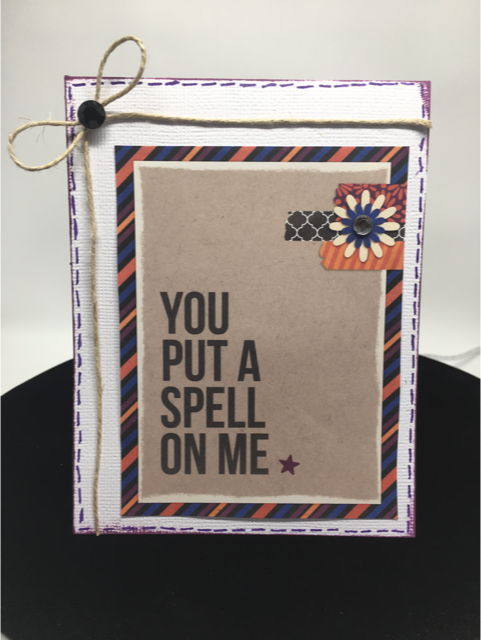
Halloween is almost here, and I wanted to make a fun hybrid project in honor of the day.  Rather than focusing on treat bags or decorations, I prefer to make cards!!


I personally think that Halloween cards should be as popular as Christmas or Birthday cards...there's so many cool and silly ways you can use the theme of Halloween to create an adorable card to send to a friend.  

To make my cards, I used two kits from a collaboration done by Sahlin Studio and Britt-ish Designs who both create designs for the Lilypad: 


I divided this tutorial up into 2 videos, since I thought watching one very long one might get tiring.

 Here is part one: 


Also, here are the other digital supplies I used (or close substitutes) on these cards if you are curious or want to pick them up yourself:

Bebas Neue Font

Digital Distressing kit by Nancie Rowe Janitz

The Part Two video:


 Traditional scrapbooking supplies used (all are clickable links):

Hero Arts Yellow Gemstones
Recollections Adhesive Rhinestones - Black
The Paper Studio Le Petites Mini Paper Bows
3/8 in. Orange Gingham Ribbon
Queen & Co. Rhinestones in Snowflake
American Crafts White Cardstock
Aleene's Original Tacky Glue
Mini Jute String
Gelly Roll Pens in Black and Purple
Mini Glue Dots
Ranger Distress Ink in Seedless Preserves
Ranger Archival Ink in Black
Epson Matte Presentation Paper


Here is a close up look at the finished cards if you want to get a closer look:


Have a splendid day!!

Five Great Reasons To Try Digital Scrapbooking

I made a video in response to questions I've had from other scrapbookers over the years about why I switched to digital scrapping, and thought I would share why I love and enjoy it so much:


If you aren't one for leaving comments on YouTube, feel free to comment here about what your thoughts are about digital scrapbooking...I'd love to hear any constructive comments.

Here are photos of the pages I featured in my video, if you'd like to get a better look at them:


Also, if you need the link to the Adobe PSE free trial, here it is: Free trial for PSE15

Thanks & have a great day,


Using Photoshop Brushes on a Layout


You guys wanna see how easy and fun it is to use brushes on a digital scrapbook page?  If so, then I have a helpful video for you on how to do just that.  It's a follow up of my previous one, where I demonstrated how to either load or install brushes.

To create this page, I used Mye De Leon's Fleeting kit, which is so fun and pretty:


http://www.snapclicksupply.com/fleeting-complete-kit


I also used this add on brush kit of hers to demo using brushes to create part of a title:


http://www.snapclicksupply.com/fleeting-stamps

And, last but not least, I also incorporated some of these fun tapes from this coordinating add on kit:


All three of these great kits can be found at the Snap Click Supply Online Store, if you are interested in picking up these kits or any others. 

Here's the video, if you like it and wouldn't mind, then give it a thumbs up on YouTube and subscribe to my channel.  I would love to have you as followers: 


Also, as a thank you for watching my video and visiting my blog, I have a free template download for you.  I recreated the bones of my layout into templates --- there's one in 8.5 x 11 and another in the 12 x 12 size. 


Thanks again, for taking time to be here.  Have a wonderful day!!

Video: Loading vs. Installing Brushes


Here's a video on my thoughts about installing and loading brushes, as well as the advantages to each method.

I hope you guys enjoy watching this --- I think Photoshop Brushes don't get all the love they deserve.  You can do so many cool things with them, and you are limited only by your imagination!  Here are some of my favorite ways to use brushes in PSE:

 Painty splats made with brushes can be awesome and unique ways to ground a photo, and it's nice variety from using standard photo mats.


Another fun use is to to ink or paint up the edges of a patterned or solid paper, like I did here with the aqua cardstock: 


Brushes can also add fun texture to a page that needs that little extra "something to make a page feel finished.  On this "Speed Racer" page,  I used a brush that looks like tire tread marks to reinforce the theme of the page.


In a few more days, I will have a video that will talk you through the process of creating a new layout using brushes, and it will show you how fun and easy they are to work with.

Let me know what you think of the video and/or this post.

I appreciate you stopping by and have a great day!

Digital Scrapbooking: Mythbusters

Hey everyone!  There's been another long gap in my blogging.  You know how it goes, right?  A busy summer, family functions, the end of school, etc.  Anyhoo...

 Recently, at one of the sites scrapbooking sites I frequent, there was a discussion pitting traditional, paper scrapping against digital scrapping. I enjoy the parts of the conversation where individuals explain why they like scrapping the way they do and what draws them to the method they've chosen to scrapbook.

The part of these types of discussions that I don't get, however, is when digital scrapbooking is said not to be scrapbooking at all. There's all sorts of misinformation about it that's perpetuated. I think so many folks misunderstand digital scrapbooking and why those who are enthusiastic about it love it.

So, as a former paper scrapper, current digital scrapper, and someone who is bound to do both in the future, I thought I'd chime in with my thoughts on the debate.  I hope to bust some of the more prevelant myths about digital scrapping.

Myth #1: Making Digital Layouts is not Scrapbooking.
The relevant thing (to me, at least) about scrapbooking is documenting memories through my pages through pictures and journaling. Wikipedia has a similar definition on their site about scrapbooking. It discusses both paper and digital scrapping. I think there are some who get stuck on the cutting and gluing part of the deal, and believe that if those methods aren't used to create a page, then it doesn't qualify as scrapbooking. I don't hold this view. If a person is documenting their memories on a page, then it doesn't matter if it's done through a Shutterfly book, created in Photoshop,  done with paper and glue, or by some other method. It all comes down to personal preference and what each scrapper prefers for themselves. I don't think it's necessary for everyone to do it the same way for it to be considered scrapbooking.

Myth #2: Digital Scrapbook Pages Are Never Printed or Become Part of an Album.
It is true for some digital scrappers that they don't print their pages. They enjoy their pages via their mobile phones, computers, or in a digital frame. That's great and what works for them. However, most digital scrappers that I know and talk with print their pages and put them in albums. Some choose to have them bound through great places like Shutterfly or Blurb, while others have individual pages printed at sites like Persnickety Prints, or Scrapbook Pictures. There are those, like myself, who have printers at home they use to print their layouts. I personally have done one Shutterfly book (with plans to do at least a few others), and have several of those cool American Crafts binders that I'm slowly filling with my printed pages.

Myth #3: Scrappers Cannot Put Their Own Handwriting on a Digital Page.
Lots of digital scrapbookers love using fonts on their pages. I'm no exception, and I fully admit to being a font junkie (which is fodder for a whole different post). Nonetheless, I still want my handwriting on at least some of my pages. I have a couple of ways that I get my writing on my layouts. My favorite way is to use my handy dandy pen tablet. The tablet I have is a few years older than the one you'll see in the following link, but it's similar enough. I use my Wacom Bamboo Fun.  Pen tablets allow scrappers to write on their digital pages.  Like any other tool, it takes a bit of practice, but it's so fun.  Here is a page I made about Izzy that includes my own handwriting:


The other method I employ is to use a font of my own handwriting.   This is nice when I don't have the time to hook up my tablet and need to crank out the journaling quickly.  This page about Elijah uses my handwriting font:


Myth #4:  Getting Pages Done Faster is the Main Reason People Switch to Digital Scrapping.  
I will say that digital scrapping is so much faster for me.  With no mess to clean,  and the ability to hit "save" and close my layouts while they are in progress, scrapbooking on my laptop is fast and slick.  While this is a huge perk, there are so many others.  There are things I can do on a digital page that would be really difficult or not possible with a paper page. Since it would be too hard to explain completely with words, I'll  post some of my pages as examples:

The effect of a grungy/artsy/painty-looking photo mask on a page (the photo of the cathedral is the one I'm talking about):


Selectively recoloring a photo without the mess of paint or pens:


The ability to match text color (and in this case, the stitching) exactly the same shade as my other embellishments.  I sampled the blue color from the strip of cardstock running down the vertical center of this page, and now it all matches wonderfully:


Brush files are the coolest thing ever.  They work pretty much the same way as a rubber stamp, but there's no way to mess them up.  When I stamp in the wrong place, I don't have to start my project over.  I just choose the "undo" command, and it's gone.  I can also stamp in any color and change the opacity of the brush.  For instance, in the page below, the tire treads are a brush.  I wanted the treads black, but when I originally stamped them on the page, they were way too dark.  I used my opacity slider and dialed it down to about 40% or so.  It looks so much better that way:


There are times when I need to an embellishment that I don't have in my stash.  When I was a paper scrapper, that meant a trip to the store.  I can go shopping at a digital scrapping site, but there are often times I can create simple items in Photoshop Elements.  On this page about Elijah, I created the blue brads and arrows, as well as the paper tear.  I did it without having to stop my projects in its tracks or leave home. They all complimented the premade goodies I used them with:


On this page about my first Mother's Day, I wanted to create a bracket-shaped border.  I'd see the punches in scrapbooking stores and like the look, but didn't have a digital element. Instead, I made one using the shape tool and a bracket symbol from one of the fonts on my computer.  You can see the result on the striped and solid pink papers around the photo:


On the layout about the beach, I was working on the title. When I first placed the black letters on the coral patterned paper, it wasn't "popping" enough and I thought the letters were getting lost in the pattern.  I decided to modify the text and make it look like letter stickers, which I liked much better:


I could go on and on about this.  There is not enough time or space to talk about all the coolness that is digital scrapping, but you get the idea.  The appeal of it goes far beyond the speed at which it can be done.

OK, I've been on my soapbox for long enough...:D I hope that this has shed some light on digital scrapbooking.  I also hope that those who choose to scrapbook using other methods will understand a little better why so many of us who do scrap this way really love it. 

What do you think about this whole issue?  How do you like to do your scrapbooking/memory keeping?

Thanks and enjoy your day!